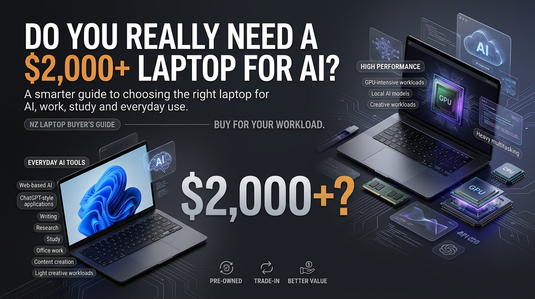
Do You Really Need a $2,000+ Laptop for AI and Everyday Work?
AI has fundamentally transformed how we interact with technology on a daily basis.
You can now seamlessly draft complex documents, generate high-resolution images, conduct deep research, analyze data sets, edit creative content, and solve intricate problems using advanced web tools like ChatGPT, Gemini, Canva AI, and various cloud-based platforms.
However, this dramatic shift has inadvertently introduced a new dilemma for buyers.
It is easy to fall into the trap of assuming your next computer must be significantly more powerful just to keep up.
Everywhere you look, laptops equipped with 32GB or 64GB of RAM, dedicated NVIDIA GPUs, top-tier multi-core processors, and multiple terabytes of ultra-fast storage are aggressively marketed under the alluring banner of being "AI-ready."
Then you glance at the price tag.
Suddenly, a versatile machine that previously would have cost $800 to $1,000 feels as though it demands a steep $2,000+ investment.
But does it actually?
For the vast majority of everyday users, professionals, and students, the answer is a resounding no.
If your daily workflow primarily involves leveraging AI through web-based tools and cloud services—such as ChatGPT, Gemini, Microsoft Copilot, Canva AI, Nano Banana, Magnific, and similar web applications—you simply do not require a heavy-duty workstation or a high-end dedicated graphics card.
The exact same logic applies to virtually all general daily tasks.
Standard web browsing, working across Microsoft Office or Google Workspace, hosting video calls, streaming media, academic research, content writing, social media management, light image editing, casual gaming, and even light video projects run effortlessly on a modern, well-balanced mainstream laptop.
So, before you start searching endless listings for the ultimate AI laptop, take a strategic step back.
You need to ask a far more practical question first:
What Do You Actually Need Your Laptop to Do?
Answering this single question accurately can instantly save you hundreds of hard-earned dollars.
A professional utilizing ChatGPT to draft emails, summarize articles, and organize schedules operates under vastly different hardware demands than a developer building, tuning, and training complex machine-learning models locally.
Similarly, an artist generating visuals via online AI platforms has completely different system requirements than a specialist executing heavy AI model weights directly on their machine.
Even in traditional media, someone occasionally trimming 1080p clips demands a completely different performance tier than a video editor handling multi-stream 4K or 8K projects.
Your laptop specifications should precisely mirror your real-world workload—not the most aggressive, high-spec advertisement appearing in your feed.
This comprehensive guide breaks down what hardware capabilities you truly need for modern productivity, cloud-based AI applications, streaming, casual entertainment, light gaming, and creative output.
We will unpack the real-world roles of RAM, multi-core CPUs, high-speed SSD storage, integrated graphics, dedicated GPUs, Chromebook options, video processing demands, and genuine future-proofing strategies.
Additionally, we will look beyond traditional brand-new retail models.
If you are actively searching for a reliable laptop near me, looking up a local laptop shop near me, or seeking out high-value, highly affordable laptops in Auckland, securing a quality refurbished or pre-owned machine can often deliver exceptional value over spending thousands on a fresh off-the-shelf system.
And if you currently own a computer, there is another key strategy to explore before making a final purchase decision:
Can you trade in your existing laptop to meaningfully offset the cost of your upgrade?
Our goal isn't to push you toward the cheapest, underpowered laptop on the shelf.
It is to equip you with the knowledge to avoid paying a premium for extreme hardware capabilities you will never actually utilize.
Do You Need a Powerful Laptop to Use AI?
This represents what is arguably the single largest misconception currently dominating the "AI laptop" landscape.
The definitive answer relies entirely on what your daily tasks mean by "using AI."
There is a massive technical gulf between utilizing a cloud-hosted AI service and executing a local AI model directly on your internal hardware components.
When you open ChatGPT in your preferred web browser and prompt it to draft a detailed article, your laptop’s local processor is not doing the intense heavy lifting required to generate those responses.
The overwhelming majority of that immense computational processing occurs on remote data centers and high-performance cloud servers.
Your physical device is simply responsible for running the browser smoothly, handling your keyboard inputs, uploading attachments when requested, receiving incoming data streams, and rendering the results cleanly on screen.
This exact architectural principle applies to almost all popular cloud-first AI platforms today.
Consequently, simply integrating AI into your everyday routine does not automatically demand a discrete graphics card or a high-end AI processor.
While an upgraded machine may certainly be necessary if your broader, non-AI software requirements demand heavier computing power, AI tool usage on its own rarely justifies a $2,000+ machine.
Using AI Is Not the Same as Building AI
Distinguishing between these two operational tiers is crucial before making an investment.
Consider two distinct user profiles operating side by side:
These two user types require fundamentally different machines.
While User Profile B gains immense value from a top-spec dedicated GPU, expansive RAM configurations, ultra-fast storage, and high-wattage multi-core processors, User Profile A simply does not.
Understanding where your actual usage falls is key to making a smart, cost-effective purchase.
What Actually Happens When You Use ChatGPT?
Let’s break this down into a practical, real-world scenario.
Imagine you are working on a standard mainstream laptop fitted with a contemporary mid-tier processor, 8GB or 16GB of system memory, a fast SSD, and built-in integrated graphics.
You launch your web browser, navigate to the ChatGPT site, and enter a detailed prompt.
Your computer packages that request and transmits it over your internet connection directly to the platform's cloud server network. The resource-intensive AI calculations occur remotely within high-powered server clusters, after which the compiled response travels back over the web straight to your screen.
Your local laptop simply displays the streaming conversation interface.
Because the heavy computational execution is outsourced entirely to remote servers, your device never needs to pack an expensive internal hardware accelerator just to communicate seamlessly with online AI frameworks.
This is why a reliable, sensibly configured mainstream laptop remains the perfect tool for professionals, students, and creators who regularly rely on cloud-based AI tools.
Your primary objective is simply maintaining enough operational memory and processing power to keep your browser tabs, documents, spreadsheets, video chats, and background apps running fluidly alongside one another.
That is a baseline general system performance requirement—not an absolute mandate for a costly, power-hungry dedicated AI graphics card.
Recognizing this distinction is precisely what protects you from overspending when weighing up $1,000, $1,500, or $2,000+ laptop choices.
So What Does "AI-Ready" Actually Mean?
Marketing terms like "AI-ready" or "AI PC" certainly sound impressive on product displays, but it pays to look closely at what they actually deliver.
Many latest-generation laptops now come equipped with an NPU (Neural Processing Unit), a specialized silicon chip tailored to process specific background AI functions—such as camera effects, background blur during video calls, or local voice transcription—with maximum power efficiency.
Other laptops highlight custom AI-driven software enhancements and hardware acceleration features.
While these hardware advancements are genuinely useful innovations, you shouldn't assume that a laptop featuring the latest "AI PC" badge is automatically a necessary or practical purchase for your specific needs.
If your primary day-to-day AI interaction consists of using cloud-based services like ChatGPT, Gemini, Canva AI, and similar browser tools, your core purchasing criteria remain beautifully straightforward and conventional:
- A Capable Processor: Reliable multi-core performance for smooth multitasking.
- Sufficient System Memory (RAM): Keeping multiple applications and heavy web tabs open without slowdowns.
- Fast SSD Storage: Swift boot times and instant file access.
- A Quality Display: Clear, comfortable visuals for long work sessions.
- Reliable Connectivity: Fast, stable Wi-Fi performance for seamless cloud communication.
- All-Day Battery Life: Dependable power efficiency for mobile productivity.
- Solid Ergonomics: A responsive, comfortable keyboard and trackpad.
In short: focus on buying a well-built, well-balanced computer first, rather than chasing a marketing specification sheet simply because it displays the term "AI."
The $2,000 Question
So, do you really need to spend $2,000 or more to secure a laptop that stays performant, responsive, and relevant over the next several years?
For the vast majority of users, the answer is definitively no.
For students, office professionals, content writers, digital marketers, researchers, educators, small business managers, and everyday users, a thoughtfully selected mainstream laptop will comfortably meet your needs for years to come.
Success isn't about buying the absolute highest specifications available; it's about investing in balanced capability.
A machine configured with 16GB of system RAM, a modern mid-range CPU, a snappy 512GB solid-state drive, integrated graphics, a high-quality screen, and reliable build quality represents the ideal daily driver for modern workloads.
While a high-end machine with 32GB or 64GB of RAM and an advanced dedicated GPU will certainly render complex 3D scenes or train local datasets much faster, paying for those specifications when your daily routine doesn't call for them simply means buying power that sits idle.
True future-proofing isn't about spending as much money as possible—it's about ensuring your hardware comfortably matches the actual work you plan to execute.
And that brings us to one of the most critical specifications of all: understanding your actual RAM requirements...
How Much RAM Do You Actually Need?
RAM is one of the first specifications you'll notice when comparing laptops. You'll see 8GB, 12GB, 16GB, 32GB, and sometimes even 64GB.
It can be tempting to assume that more is always better. Technically, more RAM gives your computer more room for multitasking. However, that doesn't mean everyone needs 32GB or 64GB.
For most people, 16GB is currently a very sensible target for a new general-purpose laptop. But 8GB can still be perfectly usable for lighter workloads, particularly on a Chromebook or a well-optimised Windows laptop.
Let's break it down.
Is 8GB RAM Enough for a Laptop?
For many everyday users, yes. An 8GB laptop can handle tasks such as:
- Web browsing.
- Email.
- Microsoft Word.
- Google Docs.
- Spreadsheets.
- Video calls.
- YouTube and streaming.
- Online research.
- Social media.
- ChatGPT.
- Gemini.
- Cloud-based AI tools.
- Basic photo editing.
- Light productivity.
You can even use AI tools extensively with 8GB of RAM if most of your AI processing happens online.
However, there's an important catch.
Modern browsers can consume considerable amounts of memory when you have many tabs open. If you regularly keep dozens of tabs running while also using Excel, Teams, Photoshop, Spotify, and other applications, 8GB can start feeling restrictive.
That's why 8GB is better viewed as a basic practical level, rather than the ideal specification for everyone buying a laptop today. If the price difference between 8GB and 16GB is reasonable, 16GB can provide much more breathing room.
What About 12GB RAM?
12GB sits in an interesting middle ground. It can be useful if you multitask regularly but don't need the heavier capabilities associated with 32GB systems.
For example, you might have:
- A browser with multiple tabs.
- ChatGPT open.
- Microsoft Word.
- A spreadsheet.
- Music playing.
- Email.
- A video call.
A 12GB machine can handle this kind of workload comfortably when paired with a capable processor and SSD. It can therefore be an attractive option when you're trying to balance price and performance.
However, laptop configurations vary. Some systems use unusual memory arrangements, and some may have upgradeable or soldered RAM. So don't judge a laptop purely by the number printed next to "RAM." Look at the complete specification and whether the memory can be upgraded later.
Is 16GB RAM Enough for AI?
For most people using cloud-based AI tools, 16GB is more than enough. If you're using ChatGPT, Gemini, Copilot, Canva AI, Nano Banana, Magnific, or similar web-based services, you generally don't need 32GB simply because those applications use artificial intelligence.
A 16GB laptop can comfortably handle AI-assisted workflows alongside normal productivity. For example, you might use ChatGPT while simultaneously working in:
- Microsoft Word.
- Excel.
- Google Sheets.
- Chrome or Edge.
- Canva.
- Slack or Teams.
- Email.
- Notion.
- Other business applications.
That is a much more realistic "AI workload" for most consumers than running an AI model locally. And 16GB gives you considerably more multitasking headroom than an 8GB machine.
For someone buying a laptop today and expecting to keep it for several years, 16GB is often the sweet spot.
Who Actually Needs 32GB RAM?
32GB is useful. It's just not necessary for everyone. You should consider 32GB if you regularly perform memory-intensive tasks such as:
- Professional video editing.
- Large Photoshop projects.
- 3D modelling.
- Virtual machines.
- Software development with demanding environments.
- Large datasets.
- Local AI models.
- Machine-learning development.
- Complex engineering applications.
- Heavy multitasking across demanding applications.
It can also make sense if you know your workload will grow substantially over the next few years. For example, a developer running several virtual machines alongside an IDE, browser, database, containers, and other tools may benefit enormously from 32GB.
Likewise, someone running local AI models may need substantially more memory than someone simply accessing ChatGPT online.
The key point is simple: 32GB is a workload decision, not an AI requirement. Don't buy 32GB simply because a salesperson or advertisement tells you that AI requires it.
Do You Need 64GB RAM?
For the average laptop buyer? Probably not. 64GB is generally aimed at specialised professional workloads. It can make sense for people working with:
- Large local AI models.
- Advanced machine learning.
- Professional 3D workflows.
- Large virtual-machine environments.
- Complex scientific applications.
- Extremely large datasets.
- High-end content creation.
If you are primarily browsing the web, working in Office, using ChatGPT, watching videos, studying, managing a business, or editing occasional videos, 64GB is almost certainly excessive.
The extra money would usually be better spent elsewhere. You might get more practical value from a better display, stronger battery life, larger SSD, better build quality, or a newer processor.
RAM Isn't the Same as Performance
This is another common mistake. A laptop with 32GB RAM isn't automatically faster than one with 16GB. RAM is only one component.
Your processor matters. Your storage matters. Your cooling system matters. Your operating system matters. Even the software you're running matters.
Think of RAM as workspace. A larger desk gives you more room to keep things open. But a bigger desk doesn't automatically make the person working at it faster.
Similarly, adding RAM to a laptop doesn't automatically make every application run faster. If your laptop already has enough RAM for your workload, adding more may provide little noticeable benefit.
What RAM Should You Choose?
Here's a practical guide.
| RAM | Best suited for |
|---|---|
| 4GB | Very basic Chromebook and lightweight use; increasingly limiting |
| 8GB | Browsing, Office, streaming, study, ChatGPT and everyday work |
| 12GB | Comfortable everyday multitasking |
| 16GB | Strong choice for most users and long-term general use |
| 32GB | Heavy multitasking, development, professional creative work and local AI |
| 64GB+ | Specialist professional workloads |
These aren't hard rules. A well-optimised 8GB Chromebook can feel perfectly responsive for its intended tasks, while an inefficient 16GB laptop can still feel frustrating. The rest of the hardware matters.
What About Storage?
RAM and storage are often confused. They aren't the same thing.
RAM is temporary working memory. Storage is where your files, applications, operating system, photos, videos and other data remain when the computer is switched off.
Modern laptops should ideally use an SSD rather than an older mechanical hard drive.
For most people, 256GB can work. However, 512GB is a much more comfortable target if you're buying a laptop that you expect to keep for several years.
A 1TB SSD can make sense if you store lots of:
- Photos.
- Videos.
- Games.
- Creative projects.
- Large files.
- Offline media.
But again, don't assume more storage automatically makes a laptop faster. A larger SSD gives you more space. It doesn't necessarily give you more computing power.
Do You Need 1TB of Storage for AI?
Usually, no. If you're primarily using cloud-based AI services, you aren't necessarily storing the AI models on your laptop. Your storage requirements are therefore determined more by your own files and applications than by your use of ChatGPT.
Someone who writes documents and stores most files in Google Drive or OneDrive may be perfectly happy with 256GB or 512GB. Someone editing lots of high-resolution video locally may need 1TB or more. Again, the workload determines the specification.
The Better Specification Strategy
Instead of buying the highest number available, aim for balance.
For a typical person buying a Windows laptop today, something around:
can provide an excellent foundation for everyday work and cloud-based AI.
You can then spend the rest of your budget on things you interact with every day:
- A better screen can improve your experience.
- A stronger battery can make the laptop more useful away from a desk.
- A better keyboard can matter enormously if you write for hours.
- A solid chassis can help the machine survive years of daily use.
- And a good warranty can provide more practical value than another 16GB of RAM you never use.
What If You Find a Good 8GB Pre-Owned Laptop?
Don't automatically reject it. This is particularly relevant when you're looking at pre-owned laptops near me or comparing affordable laptops in Auckland.
If an older business laptop has:
- A capable processor.
- 8GB RAM.
- An SSD.
- Good battery performance.
- A quality display.
- A clean operating system.
- Reliable build quality.
- Suitable warranty coverage.
it may still be an excellent option for everyday work and cloud-based AI.
The question is whether the machine meets your actual workload.
If you regularly use dozens of browser tabs and demanding applications simultaneously, 16GB would be preferable. If you mostly browse, write, research, attend meetings, stream content and use ChatGPT, an 8GB machine may still do the job.
That's why comparing pre-owned and new laptops can be worthwhile. You may find that a previous-generation business laptop gives you the performance you need at a significantly lower price.
Don't Confuse "More" With "Future-Proof"
Future-proofing is one of the biggest reasons people overspend.
You might think: "If I buy 32GB now, I'll never need to upgrade." Maybe. But you could also spend hundreds more on RAM that your workload never demands.
A better approach is to identify the tasks you're likely to perform over the next few years. If those tasks are primarily:
- Office work.
- Web browsing.
- Cloud storage.
- Video calls.
- ChatGPT.
- Online research.
- Streaming.
- Light creative work.
then a good 16GB laptop is likely to give you plenty of headroom.
If your plans include local AI development, professional video production, 3D rendering, or demanding software development, then 32GB or more may be a much smarter investment.
Future-proofing means planning for your future workload, not buying the biggest specification sheet.
Can a Chromebook Be Enough for AI and Everyday Work?
When people hear "laptop for AI," they usually picture a powerful Windows laptop.
A Chromebook rarely comes to mind.
That's understandable.
Chromebooks are generally associated with students, schools, browsing, and lightweight computing.
However, the way we use computers has changed.
A growing amount of everyday work now happens through web applications and cloud services.
That includes many AI tools.
If your main requirements involve a browser, online productivity software, cloud storage, video calls, streaming, research, and services such as ChatGPT, a Chromebook can be a surprisingly capable option.
It won't replace a powerful Windows workstation for every workload.
But you may not need a workstation in the first place.
Can You Use ChatGPT on a Chromebook?
Yes.
ChatGPT can be accessed through a web browser on a compatible Chromebook.
The same basic principle applies to many other online AI services.
You can use a Chromebook for activities such as:
- ChatGPT.
- Gemini.
- Microsoft Copilot.
- Canva AI.
- Online image-generation platforms.
- AI writing tools.
- AI research tools.
- Google Workspace.
- Microsoft 365 web applications.
- Email.
- Video conferencing.
- Online learning.
The important point is that these services don't require your Chromebook to run the underlying AI model locally.
Your Chromebook provides the interface.
The cloud handles much of the heavy processing.
That's why the hardware requirements for using AI online can be much lower than the requirements for running AI locally.
Is a Chromebook Good Enough for Work?
For the right type of work, absolutely.
A Chromebook can be suitable for:
Students
Research, documents, presentations, online classes, Google Workspace, email and AI-assisted study can all work well.
Writers
If your work happens primarily in Google Docs, Microsoft Word online, content management systems, browsers and AI writing tools, a Chromebook can cover much of your workflow.
Remote Workers
Email, meetings, cloud applications, documents and browser-based business platforms can make a Chromebook perfectly practical.
Small-Business Users
If your business relies on web-based accounting, email, CRM, collaboration and productivity software, you may not need a traditional high-end laptop.
Everyday Users
Browsing, streaming, social media, online shopping, banking and general computing are all natural Chromebook workloads.
Where Does a Chromebook Fall Short?
This is where we need to be realistic.
A Chromebook isn't the right computer for every person.
You may want a Windows or macOS laptop if you rely on specialised desktop software.
Examples include:
- Full professional versions of certain Adobe applications.
- Advanced video-editing software.
- Professional 3D applications.
- Certain engineering software.
- Specialist business applications.
- Some programming environments.
- Local AI development.
- Windows-only applications.
- Demanding offline workloads.
ChromeOS has its own ecosystem and capabilities.
Therefore, don't buy a Chromebook simply because it's cheaper.
Buy one because it matches your workflow.
Can a Chromebook Handle AI Image Tools?
If the tools you use are browser-based, generally yes.
Suppose you're creating marketing graphics with an online AI platform.
You upload an image.
You enter a prompt.
The service processes your request.
Your Chromebook receives the result.
The same basic workflow applies whether the device costs $400 or $2,000.
The expensive laptop doesn't necessarily produce the AI image faster if the actual generation is happening remotely.
Your local hardware still affects things such as how quickly the browser responds and how smoothly you work with large files.
But you don't necessarily need a dedicated GPU.
What About Video Editing on a Chromebook?
This depends heavily on the editing software and the complexity of your project.
Browser-based and lightweight video-editing tools can work well for:
- Social-media clips.
- Short videos.
- Basic cuts.
- Simple titles.
- Simple transitions.
- Short-form content.
However, professional video editors with complex timelines, advanced effects, high-resolution footage and specialised desktop software may find ChromeOS restrictive.
If video editing is a major part of your professional workload, a Windows or Mac laptop may be a better choice.
If you occasionally trim a video for social media, you don't necessarily need a $2,000 computer.
Again, workload matters more than the label on the laptop.
Can You Game on a Chromebook?
Gaming is possible, but expectations matter.
A Chromebook isn't designed to replace a dedicated gaming laptop.
However, you can still use one for certain types of gaming.
Depending on the specific Chromebook and game, you may be able to play:
- Browser games.
- Lightweight games.
- Supported Android games.
- Older or less demanding titles.
- Cloud-based games.
Cloud gaming can be particularly interesting.
Services such as Xbox Cloud Gaming can stream supported games to compatible devices, reducing the need for powerful local graphics hardware.
Your internet connection becomes a major part of the experience.
So if you're a casual gamer rather than someone who wants to play the latest AAA games at maximum settings, a Chromebook or mainstream laptop may still provide more entertainment options than you expect.
How Much RAM Does a Chromebook Need?
Chromebooks demonstrate why specifications shouldn't be viewed in isolation.
A lightweight ChromeOS device with 8GB RAM can provide a very different experience from a Windows laptop with 8GB RAM.
The operating system, processor, storage, browser workload and software all matter.
For basic Chromebook use, 4GB can still exist on entry-level devices.
However, 8GB is a much more comfortable target for modern everyday use.
If you regularly multitask, keep many browser tabs open, use web applications heavily, or want to keep the Chromebook for several years, 8GB or more is preferable.
A 16GB Chromebook can make sense for heavier multitasking, but you shouldn't assume that every Chromebook needs it.
Should You Buy a Chromebook Instead of a Windows Laptop?
It depends on your software.
Choose a Chromebook if most of your computing happens online and you value:
- Simplicity.
- Portability.
- Battery life.
- Web-based applications.
- Cloud storage.
- Everyday productivity.
- Lower upfront cost.
Consider Windows or macOS if you need:
- Professional desktop applications.
- Local AI models.
- Advanced video editing.
- 3D applications.
- Specialist software.
- High-end gaming.
- More extensive offline capabilities.
Neither approach is automatically better.
The right computer is the one that supports the applications you actually use.
Don't Dismiss a Chromebook When Shopping on a Budget
This is particularly relevant if you're searching for an affordable laptop near me.
A Chromebook can sometimes provide a better experience for a particular user than a much more expensive laptop overloaded with specifications they don't need.
Imagine someone who spends most of their day:
Chrome → Google Docs → Gmail → ChatGPT → Canva → YouTube
- They may not benefit much from an RTX graphics card.
- They may not need 32GB RAM.
- They may not need 1TB of local storage.
- They may simply need a reliable, responsive computer with a good screen, keyboard, battery and Wi-Fi connection.
That's where a Chromebook can make sense.
What About Pre-Owned Chromebooks?
The same logic applies to buying pre-owned technology.
If you're searching for pre-owned laptops near me or affordable laptops in Auckland, don't automatically focus on Windows machines.
A pre-owned Chromebook can potentially provide an affordable way to handle web-based work, study, AI services and entertainment.
However, there's one particularly important consideration:
Check the Chromebook's Auto Update Expiration date.
ChromeOS devices receive automatic updates for a defined period.
Before buying an older Chromebook, check how long it is expected to receive updates.
That's especially important if you're buying pre-owned and intend to keep the device for several years.
A low purchase price isn't necessarily a good deal if the device is close to the end of its supported update period.
Chromebook or Pre-Owned Windows Laptop?
This is where your choice becomes more interesting.
A Chromebook may be ideal if you live in the browser.
A pre-owned Windows business laptop may be better if you want more flexibility.
For example, a capable pre-owned Windows laptop could give you access to:
- Full desktop applications.
- More extensive peripheral support.
- Local file management.
- Windows-specific software.
- More upgrade possibilities on some models.
- Traditional desktop workflows.
Meanwhile, a Chromebook can offer:
- Simplicity.
- Portability.
- Low power consumption.
- Cloud-focused computing.
- Straightforward maintenance.
Neither is automatically the winner.
Your software requirements should decide.
The Bigger Lesson
The Chromebook question illustrates the larger point of this article.
You don't need the most powerful computer simply because modern technology includes AI.
You need to understand where the computing actually happens.
If the services you use are cloud-based, your laptop primarily needs to provide a reliable and comfortable way to access them.
- That could mean a Chromebook.
- It could mean a mainstream Windows laptop.
- It could mean a pre-owned business laptop.
- Or it could mean a premium machine if your workload genuinely demands one.
The important thing is to choose based on your work rather than marketing.
And that brings us to another major part of the buying decision:
What does "future-proof" actually mean, and how much should you spend to achieve it?
What Does "Future-Proofing" a Laptop Actually Mean?
"Future-proof" is one of the most powerful phrases in technology marketing. It also causes people to overspend.
You may think you need the newest processor, 32GB of RAM, 1TB of storage, and a dedicated GPU because you want your laptop to remain useful for the next four or five years. That sounds sensible.
But there's a problem: nobody can predict exactly what their computing needs will look like several years from now. Technology will change. Software will become more demanding. AI services will evolve. New applications will appear. Some workloads may move further into the cloud, while others may increasingly run locally.
So instead of trying to build a laptop that can handle everything that might exist in the future, take a more practical approach: buy enough headroom for the work you realistically expect to do.
Future-Proofing Doesn't Mean Buying the Most Expensive Laptop
Imagine two people.
The first spends $2,500 on a laptop because they want to be "future-proof." It has:
- 32GB RAM
- 1TB SSD
- A powerful dedicated GPU
- A high-end processor
But they mainly use:
- Microsoft Word
- Excel
- Browsing
- ChatGPT
- Canva
- Video calls
- Streaming
The second person spends $900 on a capable laptop. It has:
- A modern mid-range processor
- 16GB RAM
- 512GB SSD
- Integrated graphics
They perform exactly the same tasks.
The first laptop is unquestionably more powerful, but that doesn't mean the first person gets $1,600 more value from it. Unused performance is still unused performance.
What Should You Prioritise for Long-Term Use?
If you're buying a laptop that you want to keep for several years, focus on the things you'll actually use.
-
Processor
A modern processor gives you a strong foundation for everyday computing. You don't necessarily need the highest-end Core i7, Core Ultra, Ryzen 7, or equivalent processor. A capable mid-range chip can be sufficient for years of everyday work. Look at the generation, architecture, and actual performance rather than relying only on the name.
-
RAM
For many buyers, this is where spending a little more can make sense. 8GB can work for basic use, 16GB is a strong general-purpose target, and 32GB is useful for demanding workloads. If you're buying a laptop today and want comfortable multitasking for several years, 16GB is often a sensible compromise.
-
SSD Storage
An SSD makes a major difference to everyday responsiveness. It helps with:
- Boot times
- Application loading
- File transfers
- General system responsiveness
For many users, 512GB provides a comfortable balance. If you store large video libraries or creative projects locally, 1TB or more may make sense.
-
Display
Don't overlook the screen—you're going to look at it every day. A laptop with a slightly slower processor but a much better display can sometimes be a better purchase for a writer, student, marketer, or office worker than a machine with a faster CPU and mediocre screen.
Consider:
- Resolution
- Brightness
- Panel quality
- Size
- Viewing angles
- Refresh rate
- Colour reproduction
You don't need an expensive gaming display for office work, but you should still want a screen that's comfortable for long sessions.
-
Battery Life
Battery life is another form of future-proofing. A laptop that's technically powerful but constantly needs a charger isn't necessarily a great everyday machine. For students, remote workers, and people who move between locations, battery life can matter more than benchmark scores.
-
Build Quality
A laptop doesn't become future-proof if its hinge breaks after two years. Build quality matters.
This is one reason business-class laptops can be interesting when you're shopping for pre-owned laptops. Many business machines are designed around frequent daily use. You can sometimes find previous-generation business laptops with excellent keyboards, durable chassis designs, useful ports, and serviceable construction at significantly lower prices than new premium machines.
Is Buying a Previous-Generation Laptop a Bad Idea?
Not necessarily. This is where consumers can get trapped by the constant release cycle.
A new processor generation arrives. Then another. Then another. Manufacturers market each generation as a reason to upgrade. But the arrival of a newer processor doesn't suddenly make the previous generation incapable. A laptop released several years ago doesn't automatically become useless when a newer model launches.
What matters is whether its hardware remains appropriate for your software. A previous-generation laptop with a capable processor, 16GB RAM, and an SSD can still be an excellent productivity machine. That's especially relevant when you're comparing new versus pre-owned laptops.
Why Pre-Owned Laptops Can Be a Smart Alternative
Buying pre-owned isn't simply about spending less. It can be about buying the specifications you actually need without paying the premium attached to the newest generation.
For example, a previous-generation business laptop may give you:
- 16GB RAM
- 512GB SSD
- A capable Core i5 or Ryzen processor
- A quality display
- A good keyboard
- Multiple ports
- Windows support
You might not care that a newer model has a processor that's faster in benchmarks. If your actual workload already runs smoothly, the additional performance may not change your day-to-day experience significantly.
This is why pre-owned laptops in NZ can be worth considering when you're working with a fixed budget. You can potentially move up the specification ladder without moving up the price ladder.
Is "Refurbished Laptop" the Same as "Pre-Owned Laptop"?
You'll often see both terms when searching online. They shouldn't automatically be treated as identical.
Pre-owned generally means a device has had a previous owner. Refurbished can describe a device that has undergone some form of inspection, testing, repair, or restoration, although the exact process varies between sellers.
That's why you should always ask what a seller actually means by "refurbished." Look at:
- Testing procedures
- Cosmetic condition
- Battery condition
- Warranty
- Return policy
- Included accessories
- Operating system
- Any repairs or replacements
When searching for a refurbished laptop near me, don't make the label your only deciding factor. Look at the actual condition and specifications.
For TechCrazy, pre-owned is the more appropriate description for its inventory, so shoppers should focus on the individual device's condition, specifications, and coverage rather than assuming every pre-owned laptop has undergone the same refurbishment process.
Don't Forget About Your Existing Laptop
There's another way to future-proof your technology budget: you don't necessarily need to replace your laptop the moment it starts feeling old. First, determine what is actually limiting you. Is it:
- Slow storage?
- Insufficient RAM?
- Battery degradation?
- An old processor?
- A failing keyboard?
- Software compatibility?
- Physical damage?
- Lack of storage?
Sometimes the problem can be solved without replacing the entire machine. And if replacement does make sense, don't immediately throw the old laptop into a drawer—it may have value.
Can You Trade In Your Old Laptop?
In many cases, yes. A laptop trade-in can reduce the amount you need to spend on an upgrade.
The basic idea is straightforward. Instead of:
Old laptop → disposal → buy new laptop
you can potentially do:
Old laptop → trade-in → credit/value → upgrade
The amount you receive depends on factors such as:
- Brand
- Model
- Age
- Processor
- RAM
- Storage
- Physical condition
- Battery condition
- Whether it works properly
- Current market demand
Not every laptop will have the same trade-in value. However, it's worth checking before you decide that your old computer is worthless.
How a Laptop Trade-In Changes the Buying Decision
Suppose you've found a laptop that meets your needs for $1,200. Your current laptop has a trade-in value of $300. Your effective upgrade cost could become:
$1,200 − $300 = $900
That changes the calculation considerably. Instead of asking: "Can I afford a $1,200 laptop?" you can ask: "Can I afford the $900 difference after trading in my current machine?"
This can make upgrading more manageable without compromising on the specifications you actually need.
If you're looking at laptop shops near me, ask whether they offer a trade-in programme. You may be able to turn an unused device into part of the budget for your next one.
Should You Upgrade or Keep Your Current Laptop?
Before buying anything, answer these questions:
- Does it still perform your everyday tasks? If yes, you may not need to upgrade immediately.
- Is it slow because of hardware or because of software? A clean installation or storage upgrade may sometimes help.
- Are you running out of RAM? Moving from 8GB to 16GB can make a meaningful difference on some systems, provided the laptop supports an upgrade.
- Is the battery your biggest problem? A battery replacement may be worth considering depending on the laptop.
- Is your software no longer supported? That can be a stronger reason to replace the machine.
- Do you need capabilities your laptop simply doesn't have? For example, perhaps you've started professional video editing, 3D work, or local AI development. That's a legitimate reason to move into a more powerful category.
The Smartest Kind of Future-Proofing
There is no laptop that is truly future-proof. There is only a laptop that's appropriate for your expected workload.
For many people, that might mean: 16GB RAM + modern processor + 512GB SSD + integrated graphics. For some, 8GB will be sufficient. For others, 32GB and a dedicated GPU will be essential. The goal is to identify which category you belong to.
And if your requirements fall somewhere in the middle, don't assume you need the newest premium laptop. A pre-owned laptop near you could potentially provide the performance you need at a considerably lower price. If you already have a laptop, a trade-in could reduce the cost further.
That brings us to the most practical question of all: What laptop specifications should you actually look for based on the work you do?
What Laptop Specifications Do You Actually Need?
By now, you should have a clearer idea of why you don't automatically need a $2,000+ laptop for AI. But knowing that isn't enough. You still need to choose a laptop. The easiest way to do that is to start with your workload.
Don't start with the price. Don't start with the brand. And definitely don't start with the biggest number on the specification sheet. Start with what you actually do every day.
Best Laptop Specifications for Basic Everyday Use
If you mainly browse the internet, check email, watch videos, use social media, attend video calls and work with simple documents, you don't need much. A sensible specification could include:
- 8GB RAM
- 256GB SSD
- A modern entry-level processor
- Integrated graphics
- Full HD display
- Reliable Wi-Fi
This is enough for many basic users. You could comfortably use web-based AI tools such as ChatGPT alongside normal browsing and productivity applications.
However, if you're buying a laptop that you expect to keep for several years, moving up to 16GB RAM and a 512GB SSD can provide useful additional headroom.
Best Laptop Specifications for Students
Students often need a little more flexibility. You might use your laptop for:
- Research
- Microsoft Office
- Google Workspace
- Online classes
- Presentations
- PDFs
- Video calls
- Streaming
- AI-assisted study
- Light creative work
A good target is: 16GB RAM + 512GB SSD + modern mid-range processor.
You don't necessarily need a dedicated GPU. You also don't necessarily need an expensive premium laptop. A lightweight Windows laptop or Chromebook can make more sense depending on the applications required by your course.
If you're looking for an affordable laptop near me, this is one category where comparing new and pre-owned models can be particularly worthwhile.
Best Laptop for Office Work
For everyday office work, you should prioritise responsiveness and comfort. Your workload may include:
- Microsoft Word
- Excel
- PowerPoint
- Browser applications
- Teams or Zoom
- CRM software
- Cloud storage
- ChatGPT
- Research
- Multiple browser tabs
A strong target is: 16GB RAM + 512GB SSD + capable Core i5/Ryzen 5-class processor or equivalent.
Integrated graphics are usually sufficient. A business-focused laptop can also be a particularly good choice. You may get a better keyboard, more useful ports, stronger build quality and a more practical design than you would from a similarly priced consumer laptop.
Best Laptop for Writers and Content Creators
If you spend several hours typing every day, the keyboard and display deserve more attention. Your workload might include:
- Google Docs
- Microsoft Word
- CMS platforms
- Research
- ChatGPT
- AI writing tools
- Canva
- Image editing
- Browser-based SEO tools
- Video calls
A good configuration could be: 16GB RAM + 512GB SSD + modern mid-range processor + good-quality display.
You don't necessarily need a dedicated GPU. For writers, a comfortable keyboard can provide more practical value than an expensive graphics card. The same applies to bloggers, marketers, researchers and social-media professionals.
Best Laptop for AI Users
This is where we need to separate AI users from AI developers. If you mainly use:
- ChatGPT
- Gemini
- Copilot
- Canva AI
- Nano Banana
- Magnific
- Midjourney
- Online AI research tools
- AI writing tools
then a good mainstream laptop is usually sufficient.
A sensible configuration is: 16GB RAM + 512GB SSD + modern processor + integrated graphics.
An NPU can be a useful bonus on newer systems. But you don't necessarily need a dedicated GPU. Your internet connection may actually matter more for cloud-based AI services.
Best Laptop for Light Photo Editing
Photo editing requirements vary considerably. Basic editing doesn't necessarily require a dedicated GPU. If you're working with:
- Social-media graphics
- Website images
- Product photography
- Basic Photoshop work
- Canva
- Lightroom for moderate workloads
then 16GB RAM, SSD storage and a capable processor can be enough.
However, your display becomes more important. If colour accuracy matters, look for a good-quality panel with strong colour reproduction. For professional photography, advanced compositing and extremely large files, higher specifications may be justified.
Best Laptop for Video Editing
This category needs more careful consideration. For basic video editing, you may be comfortable with:
16GB RAM + 512GB SSD + capable processor + integrated graphics.
This can work for:
- Short-form videos
- Social-media content
- 1080p projects
- Simple YouTube videos
- Basic transitions
- Captions
- Straightforward edits
However, if you're working professionally with complex 4K footage, advanced effects or long timelines, consider stepping up. You may want:
32GB RAM + dedicated GPU + larger SSD + higher-performance processor.
Your storage requirements may also increase substantially. Video files become large very quickly.
Best Laptop for Casual Gaming
You don't necessarily need a gaming laptop. If you're playing:
- Older games
- Indie games
- Browser games
- Less demanding titles
- Certain esports games
- Older strategy games
- Some emulated games
integrated graphics may be sufficient depending on the title and settings. You should always check the specific game's requirements.
However, if you want modern AAA games at high settings, you'll likely want a dedicated GPU. That's where gaming laptops become much more relevant.
Best Laptop for Cloud Gaming
Cloud gaming is another interesting option. If you're using services such as Xbox Cloud Gaming, the local GPU isn't doing all the rendering work in the traditional sense. The game runs remotely and is streamed to your device. That means a mainstream laptop can potentially provide a good cloud-gaming experience.
You'll want to prioritise:
- Reliable internet
- Stable Wi-Fi
- Good display
- Comfortable controls
- Good battery life
Your experience will depend heavily on your network connection. A powerful laptop won't completely solve poor internet latency.
Best Laptop for Programming
Programming is another category where requirements vary enormously. For basic web development, scripting and general programming, you don't necessarily need an expensive laptop.
A sensible starting point could be: 16GB RAM + 512GB SSD + modern Core i5/Ryzen 5-class processor or equivalent.
If you're working with:
- Docker
- Virtual machines
- Large development environments
- Multiple databases
- Android Studio
- Large codebases
- Local AI models
then 32GB RAM can become more useful. A dedicated GPU may also be relevant for specific development workloads.
Best Laptop for AI Development
This is where the requirements change substantially. If you're actually developing AI systems rather than simply using them, you may need considerably more computing power. You could be working with:
- Machine-learning frameworks
- Local language models
- Model fine-tuning
- Large datasets
- Computer vision
- Local image generation
- GPU acceleration
- CUDA-based development
At this point, a dedicated GPU can become extremely valuable. RAM requirements may also increase. You might consider:
- 32GB RAM or more
- High-performance processor
- Dedicated GPU
- Sufficient VRAM
- Fast NVMe SSD
- Strong cooling
This is a completely different category from the person using ChatGPT in Chrome. Don't let AI marketing make you buy a developer's laptop for a consumer's workload.
So, Do You Really Need a $2,000+ Laptop for AI?
For most people, no.
You don't need a high-end GPU simply because you use ChatGPT.
You don't need 32GB or 64GB of RAM simply because your laptop needs to be "AI-ready."
You don't need a gaming laptop to occasionally play games.
And you don't necessarily need the newest processor generation to keep your computer useful for years.
What you need is a laptop that matches the work you actually do.
For Most People, 16GB Is the Sweet Spot
If you're buying a laptop for everyday work, study and cloud-based AI, 16GB of RAM is a sensible target.
Pair it with:
- A capable modern processor.
- A 512GB SSD.
- Integrated graphics.
- A good-quality display.
- Reliable Wi-Fi.
- Decent battery life.
That combination can handle an enormous amount of modern computing.
You can browse the web.
You can work in Microsoft Office.
You can attend video meetings.
You can use ChatGPT.
You can create graphics with Canva.
You can use online AI image-generation tools.
You can edit photos.
You can create basic videos.
You can stream movies.
You can play less demanding games.
You can even use cloud gaming services.
For many people, that's already more than enough.
When Should You Spend More?
There are situations where spending $2,000 or more can absolutely make sense.
If you're a professional video editor, 3D artist, developer, machine-learning engineer, serious gamer or someone who regularly runs demanding workloads locally, additional hardware can provide genuine benefits.
In those cases, you're not paying for marketing.
You're paying for performance you can actually use.
A powerful GPU can dramatically improve certain workloads.
More RAM can help with complex multitasking.
A faster processor can reduce rendering and compilation times.
More storage can be essential for large projects.
The important question isn't:
"Is this laptop powerful?"
It's:
"Will I use that power?"
Don't Buy Hardware for a Job You Don't Do
This is perhaps the simplest rule in the entire guide.
If you don't play demanding games, you don't need to buy a laptop around gaming performance.
If you don't run AI models locally, you don't need to buy a laptop around local AI performance.
If you don't edit professional 4K or 8K video, you may not need a workstation-class GPU.
If you don't use huge datasets, you may not need 64GB of RAM.
If you don't store enormous media libraries, you may not need 2TB of storage.
Buy for your workload.
Then leave some room for growth.
That's much more sensible than buying the most expensive configuration available.
What If You Want to Spend Less?
This is where you should consider the wider laptop market.
A new laptop isn't your only option.
You can compare:
- New laptops
- Pre-owned laptops
- Refurbished laptops
- Previous-generation business laptops
- Trade-in options
A pre-owned laptop can sometimes give you access to a higher-tier machine for considerably less than its original retail price.
That's particularly useful if your workload doesn't require the newest generation.
For example, a previous-generation business laptop with 16GB RAM and a 512GB SSD may be perfectly capable of handling your office work, browsing, cloud AI and everyday tasks.
You don't necessarily need the newest model sitting on the shelf.
Searching for a Laptop Near Me?
If you're searching for "laptop near me", use the search as the beginning of your research rather than the end.
Compare local stores.
Compare new and pre-owned options.
Check specifications.
Look at condition.
Ask about warranty.
Ask about battery health.
And if you're upgrading from an existing laptop, ask about trade-in options.
Shopping locally can also let you physically inspect a laptop before purchasing.
That can be particularly valuable when buying pre-owned technology.
You can check the keyboard, screen, ports, hinges and overall condition for yourself.
For Auckland shoppers, comparing laptop stores near me with online options can also help you understand what you're actually getting for your money.
Don't Automatically Dismiss Pre-Owned Technology
Technology moves quickly.
That doesn't mean every older laptop becomes useless.
A laptop that was considered high-end a few years ago may still be more than capable for everyday computing today.
This is especially true when your workload is primarily cloud-based.
A previous-generation laptop can still run a modern browser.
It can still access ChatGPT.
It can still handle documents.
It can still run video calls.
It can still stream content.
And it can still handle many everyday creative tasks.
The question is whether its current specifications and condition match your requirements.
Pre-Owned Doesn't Mean "Settle for Less"
This is an important mindset shift.
Buying pre-owned isn't necessarily about accepting an inferior computer.
Sometimes it's about getting more of the specifications you actually want for your budget.
Your budget might buy a brand-new entry-level laptop.
But that same budget could potentially buy a higher-specification pre-owned model.
That might mean:
- More RAM.
- More storage.
- Better build quality.
- Better display.
- More powerful processor.
- Better connectivity.
The machine may be older.
But if it performs your workload better, it can still be the smarter purchase.
And Don't Forget Your Existing Laptop
Before you put your current laptop aside, find out what it's worth.
A laptop trade-in can potentially turn an old device into credit toward your next purchase.
That can make upgrading considerably easier.
Instead of thinking:
"I need $1,500 for a new laptop."
you might discover:
"I need $1,000 after my current laptop's trade-in value."
That difference matters.
It can also help you move into a better specification category without increasing your overall budget as much.
The $2,000 Laptop Isn't the Enemy
It's worth making one final distinction.
This article isn't saying expensive laptops are bad.
They're not.
A $2,000+ laptop can be an excellent investment when you genuinely need its capabilities.
The problem is assuming that everyone needs one.
You don't.
Technology marketing often encourages you to think about what a computer can do.
Smart buying asks what you actually need it to do.
Those aren't the same question.
Your Laptop Buying Checklist
Before you buy, ask yourself these questions.
-
What do I actually use my laptop for?
Write down your five most common tasks.
-
Do I use AI online or run AI locally?
ChatGPT and cloud-based AI are very different from AI development.
-
How much RAM do I really need?
For many people, 16GB provides a strong balance.
-
Do I actually need a dedicated GPU?
If you're not gaming heavily, editing professionally or running local AI, probably not.
-
How much storage do I need?
512GB is a comfortable target for many users.
-
Do I need Windows, macOS or ChromeOS?
Choose based on the applications you use.
-
Could a previous-generation laptop work?
Don't automatically reject older hardware.
-
Have I compared pre-owned options?
You might find better specifications for your budget.
-
Have I checked the warranty?
This matters particularly when buying pre-owned.
-
What is my current laptop worth?
Check whether a trade-in can reduce your upgrade cost.
-
Have I searched locally?
Try searching for "laptop near me" or visiting a local laptop store to compare options.
The Bottom Line
You don't need to spend $2,000+ just to say your laptop is "AI-ready."
For most people, AI is becoming a service they use, not something they need to compute locally.
That distinction changes everything.
A good mainstream laptop can handle ChatGPT, online AI tools, office work, research, study, entertainment and plenty of everyday creative tasks.
A Chromebook may even be enough if most of your workflow lives online.
Meanwhile, integrated graphics can handle many everyday tasks and some casual gaming without requiring a dedicated GPU.
If you need professional video editing, serious gaming, local AI or machine-learning development, spending more can make sense.
But those are specific workloads.
They aren't the workloads of everyone.
So before you spend thousands on your next laptop, ask yourself one simple question:
"What am I actually going to use all that power for?"
If you don't have a good answer, you probably don't need all of it.
And if you're looking for a laptop near me in Auckland, don't limit your search to the newest models.
Compare new, pre-owned and refurbished options.
Look at the actual specifications.
Check the condition and warranty.
And if you already own a laptop, explore a trade-in before paying the full price for your next one.
The smartest laptop isn't necessarily the most powerful one.
It's the one that gives you the performance you need without making you pay for the performance you don't.